Step TO open MS-DOS in Window XP & Window 7 | Computer Tips and Tricks

               Step TO open MS-DOS in Window XP & Window 7
  1. Step1: Click Run Option.

Start Menu


  1. ­­­­Type cmd & enter button.
 Run

     3.  Open the MS-Dos Window.
4.  Click Start button                
Step2:
  1. Click Start Button.
  2. Click to All Program option.
  3. Click to Accessories option.
  4. Click command prompt option than open the MS-DOS window.
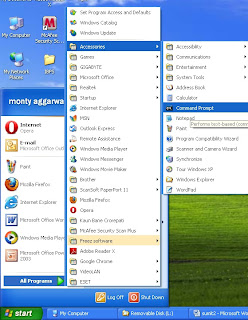
                                            Start Menu

The figure given below
CMD WINDOW 

                                                              MS- DOS WINDOW
Read more Tricks at Computer Tweaks and Tricks

Microsoft Office 2013 Activator | Computer Tricks and Tips

Microsoft Office 2013 Activator | Computer Tricks and Tips

Microsoft Office 2013 Activator | Computer Tricks and Tips

Today i thought of sharing KMSpico v4.0 Setup & OEM Directory Portable Repack Version with you.
KMSpico v4 - is the ideal tool to activate the final version of Office 2013. Activator does not require user intervention, the entire activation process takes place in the background. You have to just run the activator and wait a couple of minutes to check the activation status of Windows and / or Office.

Requirements:
- Requirements:. NET 4.0 or Windows 8.
- Windows Server 2008/2008R2/2012

Instruction:
1. Run KMSpico.exe or RunTrigger.cmd
2. Done ..

Recommendations:
- Disable SmartScreen.
- Disable microsoft security updates.
- Make exceptions to% programfiles% \ KMSnano in Antivirus.

Download Link
http://www.sharebeast.com/lx0hr7clfq09

Please Keep in mind it activates only Volume License VL Version not RTM Version.
Read more Tricks at Computer Tweaks and Tricks

Google Trick | Computer Tips and Tricks | Computer Tricks and Tips

Mobile, DTH or data card to recharge at home. | Computer Tips and Tricks | Computer Tricks and Tips

Mobile, DTH or data card to recharge at home. | Computer Tips and Tricks | Computer Tricks and Tips
If you have anywhere and anytime with your mobile , DTH or data card recharge would like to have it work for you Paytm the app . Just for your Android smartphone has to be in your hand . All operators in the country offers this service and credit or debit card you can Pament . If you Use this app on the Android smartphone operating system is completely free for you . Dawar addition, you can use the service on your computer .more tricks read click Computer Tricks
Read more Tricks at Computer Tweaks and Tricks


https://paytm.com


http://www.justrechargeit.com/


https://www.mobikwik.com/


http://www.rechargeitnow.com/


http://recharge.oneindia.in/


https://www.freecharge.in/

Top 5 Photo Editing Apps | Computer Tips and Tricks | Computer Tricks and Tips

The Android mobile application for you with some photo editing on your mobile you can edit any photo beautifully. This software is available for free on Google Play., If you have to download software from the Google Play I do not know how then read this post.  this post on Google Play any downloaded software is explained.Read more Tricks at Computer Tweaks and Tricks


    Photo Editor
                                                            Photo Editor   (Download )


                                               Cover art 
Photo Editor Download

Cover art 

PicsArt Download

Cover art

PicSay Download 

Cover art 

InstaFrame Photo Collage Maker Download 

How To: Change Your Ip In Less Then 1 Minute | Computer Tips and Tricks | Computer Tricks and Tips

 How To: Change Your Ip In Less Then 1 Minute | Computer Tips and Tricks | Computer Tricks and Tips
1. Click on "Start" in the bottom left hand corner of screen
2. Click on "Run"
3. Type in "command" and hit ok

You should now be at an MSDOS prompt screen.

4. Type "ipconfig /release" just like that, and hit "enter"
5. Type "exit" and leave the prompt
6. Right-click on "Network Places" or "My Network Places" on your desktop.
7. Click on "properties"

You should now be on a screen with something titled "Local Area Connection", or something close to that, and, if you have a network hooked up, all of your other networks.

8. Right click on "Local Area Connection" and click "properties"
9. Double-click on the "Internet Protocol (TCP/IP)" from the list under the "General" tab
10. Click on "Use the following IP address" under the "General" tab
11. Create an IP address (It doesn't matter what it is. I just type 1 and 2 until i fill the area up).
12. Press "Tab" and it should automatically fill in the "Subnet Mask" section with default numbers.
13. Hit the "Ok" button here
14. Hit the "Ok" button again

You should now be back to the "Local Area Connection" screen.

15. Right-click back on "Local Area Connection" and go to properties again.
16. Go back to the "TCP/IP" settings
17. This time, select "Obtain an IP address automatically"
tongue.gif 18. Hit "Ok"
19. Hit "Ok" again
20. You now have a new IP address


With a little practice, you can easily get this process down to 15 seconds.

Read more Tricks at Computer Tweaks and Tricks

How to unlock / reset an Android Emergency Locksmith: | Computer Tips and Tricks | Computer Tricks and Tips

How to unlock / reset an Android Emergency Locksmith: | Computer Tips and Tricks | Computer Tricks and Tips

1 ) Firstly , you need to swich Keep it away from your Android device For some time .

2 ) Now press the volume up Button and hold for 30 seconds .

3 ) Now press the Home button and Grab it , then press the power button And then just started your phone Release it .

4 ) Then you can enter into the mystery Android menu you never see it Earlier , just click on the home button Up and down in the menu .

5 ) Now click on the third option To delete all user data .

6 ) Now This way, your Android Lock pattern is now open The problem is solved .


You face any problem commentBelow ,Android hit more tricks

Read more Tricks at Computer Tweaks and Tricks

Rename Multiple Files at Same time | Computer Tips and Tricks | Computer Tricks and Tips

Rename Multiple Files at Same time

Have a good number of files in your drive to rename? It gives plenty of time to rename all by one. Although you can save some time if you follow the steps to rename all files at a go given below:
Step 1: Open the folder where you have all the files you wish to rename (that sounds pretty obvious!)

Rename Image


Step 2: Select the files you wish to rename
Rename Multiple Files at Same time

Step 3: Press F2 (Dell users press Fn + F2) or right click any one of the file in your selection and select rename option. Keep all the files are selected.

Rename Multiple Files at Same time

Step 4: Rename one of the file amongst your selection.

Rename Multiple Files at Same time

Step 5: You are done. All files have been renamed with a counter value different in each one of them.

Rename Multiple Files at Same time
This trick can be used to rename multiple Files like Images of a particular occasion, files of particular genre etc.Read more Tricks at Computer Tweaks and Tricks


Remove/Show Notify Area Icons | Computer Tips and Tricks | Computer Tricks and Tips

Remove/Show Notify Area Icons

You can always select which icons & Notifications you want to appear on the taskbar in Windows.

Remove/Show notify Area Location


Navigate to control panel, All control Panel Items>Notification Area Icons

Remove/Show notify Area Location


Here you can select for which application you want to remove / show notification or Icon.
Although it does not removes or loads and of the application in the memory. If you wish to tweak so that, the application to appear/disappear at startup you may require it to tweak through MSCONFIG
Read more Tricks at Computer Tweaks and Tricks